How to edit videos with ChatGPT: what works today
Can ChatGPT edit videos? What ChatGPT does on its own, how an editing app like Oracut cuts, captions and exports clips right in the chat – and which prompts help.
By the Oracut team · · 5 min read
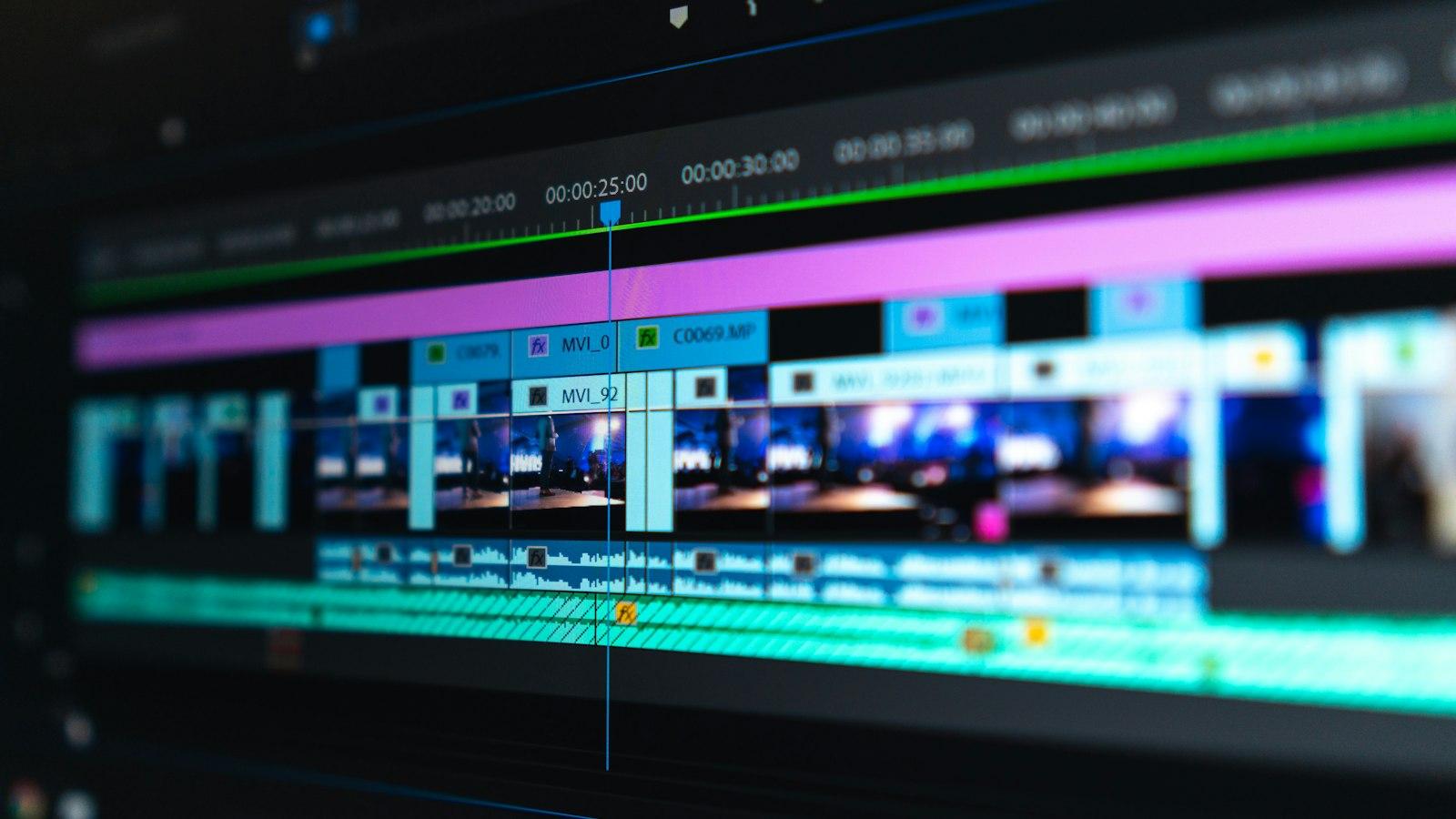
“Can ChatGPT edit my video?” On its own, ChatGPT is not an editing program. It is great at ideas, scripts, titles and post texts – but cutting a 30-minute recording into a clean vertical clip with captions is a job for a specialised tool. With apps in ChatGPT, that tool can run right inside the chat. This guide explains how video editing in ChatGPT works today and what you can expect.
What ChatGPT does well – and where an app comes in
- ChatGPT on its own: brainstorm topics, write scripts and hooks, suggest titles, captions for your post text and hashtags.
- With an editing app like Oracut: upload the actual video, cut it to a target length, remove pauses and filler words, frame it in 9:16, burn in subtitles and export an MP4.
The advantage of the combination: you describe what you want in plain words, the app does the editing, and ChatGPT explains the result and helps you adjust it – no timeline, no keyboard shortcuts.
Step by step: editing a video in ChatGPT with Oracut
- Connect once. Create an Oracut account, add Oracut in ChatGPT and click “Connect”. Details in Using Oracut in ChatGPT.
- Say what you need. “Open Oracut”, or describe the result: “Cut my interview into a 60-second clip with subtitles.”
- Upload in the Oracut window. Videos are uploaded there, not as a chat attachment – up to five videos for one clip, 15 seconds to 45 minutes each.
- Choose the settings. Target length (15–180 seconds), captions, cut pace, soft transitions, hook and optionally a focus.
- Let it cut. Oracut transcribes, picks the strongest passage, removes pauses, “um” and repeated sentences and adds captions. ChatGPT then tells you what was cut and why.
- Adjust by chatting or in the editor. “Make the cuts faster”, “make the captions yellow”, “use a different passage” – or change it yourself in the editor. Then download the MP4.
What works especially well
- Talking-head videos, webinars, interviews, lives and video podcasts – anything where someone speaks.
- Several takes of the same text: Oracut finds the best take of each part and puts them in order.
- Landscape recordings that need to become vertical Reels, Shorts or TikToks.
What it does not do
- It does not generate new videos from text or images – it edits your own recordings.
- It does not invent or rewrite what you said; the clip only contains your real words.
- It does not post anything. You download the clip and decide where it appears.
Prompts that help
- “Turn my webinar into a 60-second clip with captions.”
- “Cut my two takes into one clip with a hook at the start.”
- “Pick another strong passage – more about the pricing part.”
- “Make the cuts of my latest clip calmer.”
- “Give me my latest clip as MP4.”
More on what makes a clip work: Turning long videos into short clips. The Free plan includes 10 credits once to try it with your own video.